Thanks again, @DawnC. I just reentered the four 1099-NECs yet another time and they continue to create separate Schedule Cs! And this time, after I designated the first 1099 as a business called "consulting," TurboTax wouldn't even let me choose that business for any of the remaining 1099s. Strange.
Token number is 1171411.
I'll look forward to what you find, with appreciation of your help.
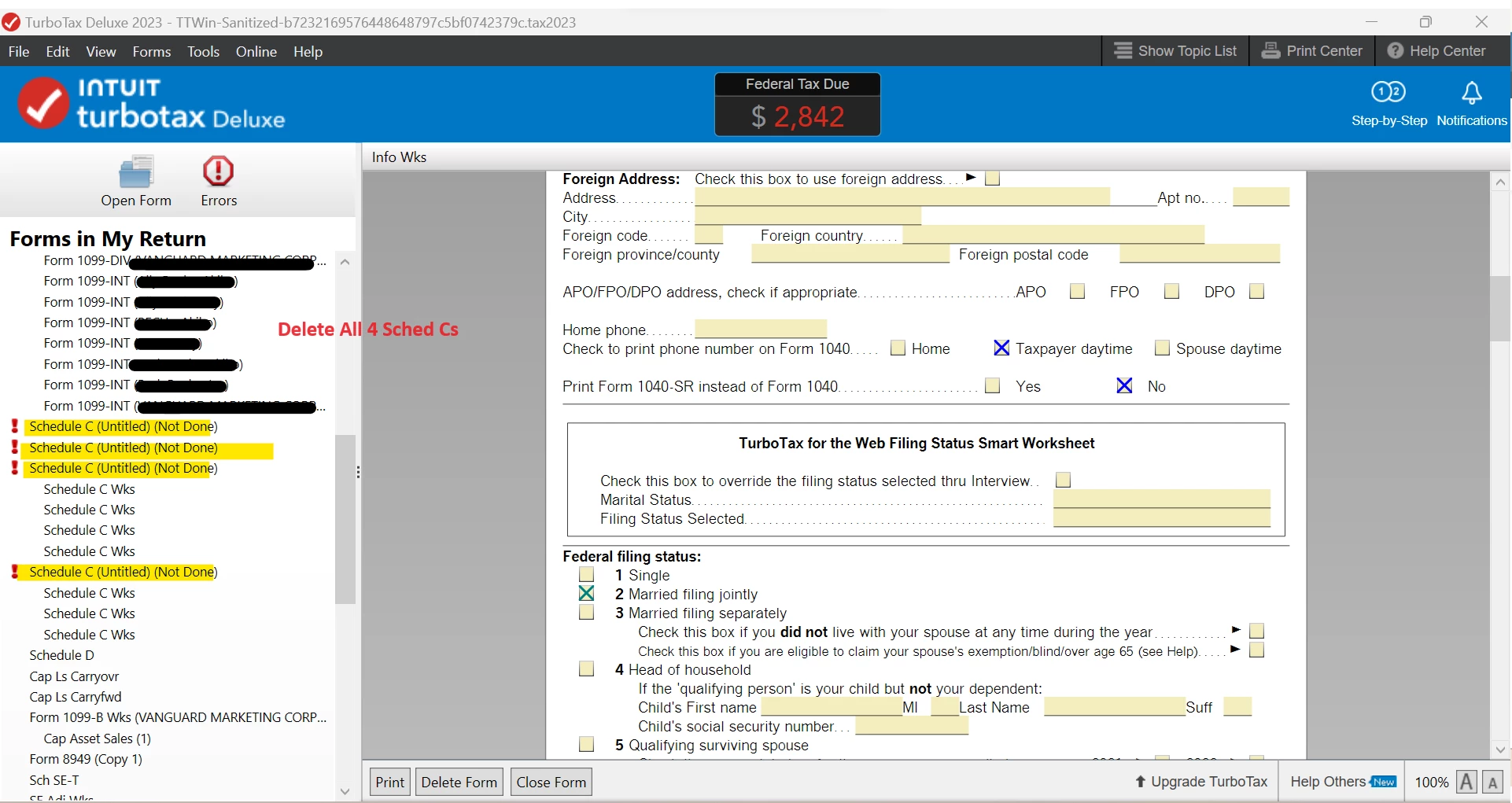
I took a look at your return, and saw the 4 untitled Schedule Cs. I think it is a matter of the order in which you are linking the 1099s to the Schedule C.
I am going to list the steps that I took to fix it, below. If you have any issues or need screenshots, let me know. I believe you are working directly in Forms mode, if not, go to Forms mode in TurboTax Deluxe desktop. Then,
- Delete all four Schedule Cs that are there. They have ! marks next to them, after you delete them, the 1099s will have the ! marks next to them. (SS attached)
- Scroll up to the first 1099 and click in the pink box (they will all have ! marks now), then click on the link arrow.
- Ignore all the untitled Schedule C links that are listed and type consult in the 'Create new copy' box.
- Click Link.
- Click on the 2nd 1099 and do the same thing, but the consult Schedule C will be in the list, so select it and click Link (**there is a scroll bar**).
- Then do the same with the 3rd and 4th. You should end up with no exclamation marks next to the 1099s and one Schedule C (consult) with an exclamation point that you will need to go through and complete the entry for.
You can do this without forms mode also. In the Federal Taxes tab, click on Wages & Income and scroll down to Business Items. You can edit your Schedule C(s) from there as well as in Forms mode. Also, if you scroll up to 1099-NEC on that page, you will see the correct total once they are all linked to the same Schedule C. Let me know if you need more than the screenshots below. You can delete and add Schedule Cs this way also (step-by-step mode).
Step 1